
Your marketing campaign’s success often depends on the quality of your visuals. Be it a product, service, or brand narrative that you are trying to push, powerful pictures will help you to get people to take notice and motivate action. Modern marketers do not have to rely on sophisticated design programs or minimal skills anymore, and CapCut PC is extremely easy to use thanks to its potent artificial intelligence image-making tools.
Using the AI image generator at CapCut, you can now create refined ad concepts based on mere thought in a few seconds. And in case your campaign needs a recognizable brand logo, you can also go with its AI logo creator to create clean logo images that fit your advertisement preferences. This is a full tutorial on how to make your ad professionally ready on CapCut PC.
Why Use CapCut PC for Ad Visuals?
CapCut PC can now be regarded as one of the most feasible solutions that can be offered to marketers, business owners, freelancers, and content creators who want to produce impressive ad visuals without having to outsource designing. Its app is easy to use, its AI programs are quick, and its editing capabilities allow you to exercise all the creative power.
You are able to test different visual styles, create variations of ad ideas, and tailor them until they fit the message of your brand perfectly. Whether you prefer realistic product images, minimalist layouts, or energetic lifestyle scenes, CapCut allows you to create them with AI.
Key Benefits for Marketers and Creators
- High-Quality Visual Generation
The AI generated by CapCut can be used to produce high-resolution images that can be used in online advertisements, promotion of products, and social media campaigns.
- Consistent Branding
The platform allows you to make use of your brand colors, text styles, and AI-generated logos so that each advert would appear cohesive and professional.
- Faster Creative Workflow
You do not have to spend hours designing; you can create images immediately and correct them with the help of simple drag-and-drop editing.
- Cost-Effective for Small Businesses
There is no necessity to use costly equipment or recruit designers because CapCut PC can work with ideation and design in an efficient manner.
- Designed for Multiple Ad Formats
No matter whether you are making postings on Instagram, advertising on Facebook, the thumbnails on YouTube, or creating banners on websites, CapCut includes pre-prepared sizes on the canvases.
How CapCut PC Helps with Ad Creation
Instant Visual Concepts
The AI might offer new creative directions, even when you are trapped by ideas, and all you need is to insert several words.
Perfect for A/B Testing
Come up with several different variants of the same advertisement visual and test performance.
Easy Editing Tools
Change the backdrop, upgrade the colors, add overlays, etc., in a few minutes.
Supports Creative Branding
Upgrade AI-created imagery and logos to develop a familiar brand representation.
3 Easy Steps to Create Professional Ad Visuals
These actions include the reference to the workflow that you gave, but was reworded in this topic.
Step 1: Open the CapCut Desktop
Download and open CapCut PC, then log in to your account. To launch a workspace, a button called Create project is used. This provides you with a blank sheet upon which you may begin creating your ad images, and your editing tools and panels are arranged together in a convenient place.
Step 2: Create an AI image
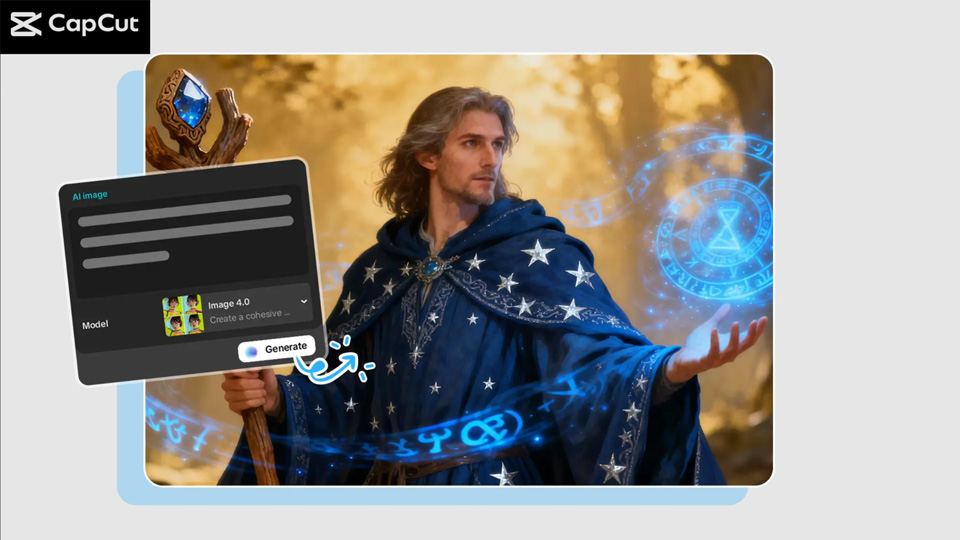
Go to the section of Media > AI media and choose AI Image. Add a brief statement about a visual that you want in your ad, i.e. modern product ad with soft lighting or a minimalist beauty ad in pastel colours. Select an AI model such as Nano Banana Pro, Seedream, or Flux 1.1 Pro. It is also possible to add reference pictures to obey AI. Choose the aspect ratio of your choice and then choose Regenerate to generate various options of the image. Select the one you prefer the most and edit it with the AI tools of CapCut.
Step 3: Export and share
After completing your ad visual, all you need to do is press the three lines towards the right of the preview panel. In the lower section, anything but a full screen will appear, so that you can choose Export, name your project, 4K or 8K resolution, and tap the Export button. Your advertising image has been stored and can now be used throughout your marketing effort.
Tips for Making Your Ad Visuals Stand Out
- Use Bold Colors
The use of bright or bold color mixes is useful in making your advertisement stand out from the clutter and capture immediate attention.
- Keep Text Minimal
Even a small headline, a few words, or even one selling point is sufficient-do not clutter the eye.
- Ensure Brand Consistency
Be sure that all your campaigns are designed in the same font, style, and color palette.
- Generate Multiple Variations
Create 3–5 visual variations, which are then selected, and the strongest one is used in your campaign.
- Optimize for Different Platforms
Facebook, Instagram, TikTok, and YouTube possess dissimilar aspect ratios-select templates.
- Enhance Branding
Use CapCut’s AI logo generator to include branded elements, icons, or watermarks for a cohesive look.
Final Thoughts
The AI generator of CapCut PC makes it the fastest, most user-friendly, and most affordable way to create professional ad visuals. Even manual or inexperienced designers do not need much time to create sleek, high-end visuals in just a few minutes. The built-in AI logo-creating system makes everything that you design look like a well-organized brand image. With the help of the three steps of working them out, opening CapCut, generating an image with the help of the AI image generator, and exporting your visuals, you may create an ad creative that would make people pay attention and get results.



Recent Comments